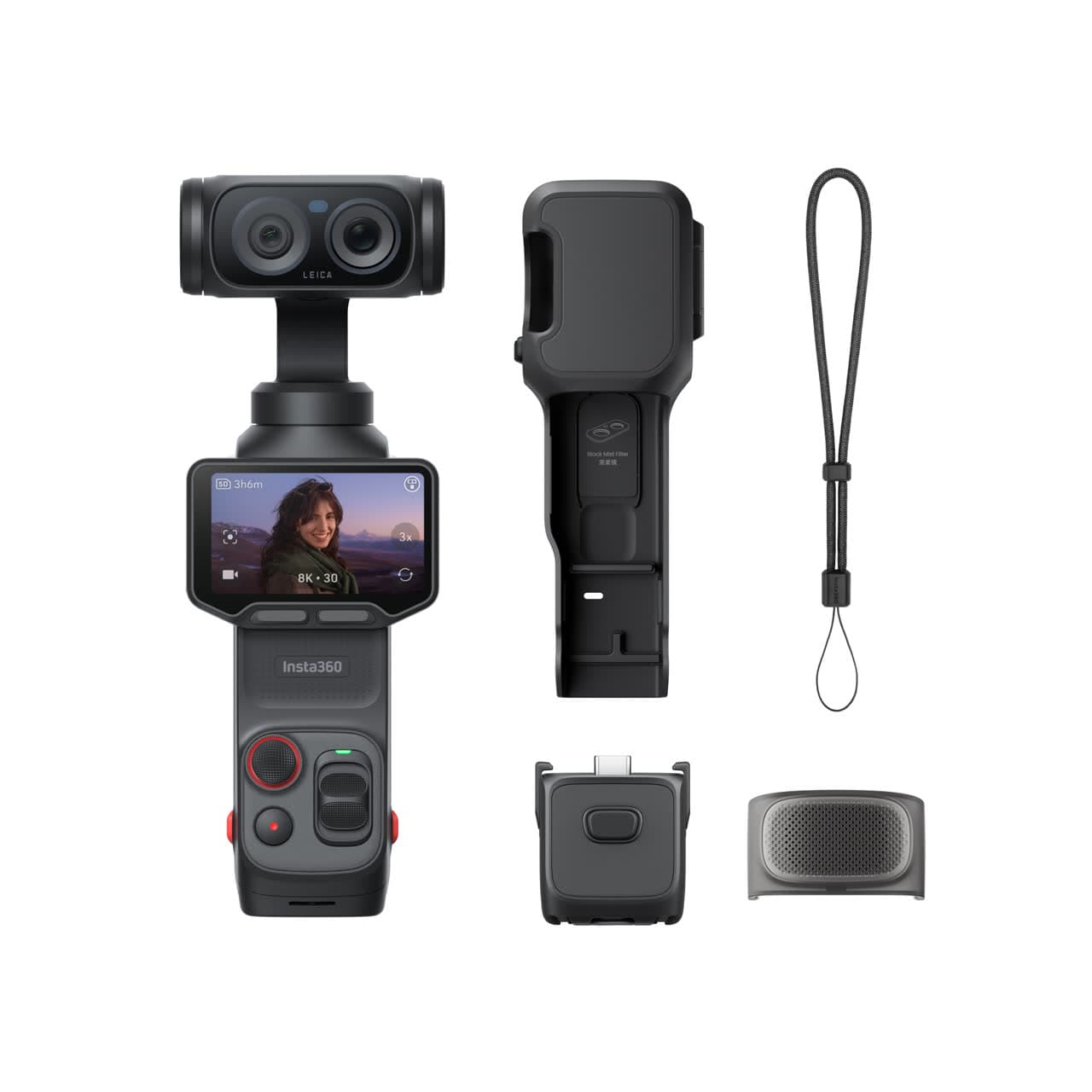
Insta360 Luna Ultra
Best fit: U.S. creators who want a current premium pocket gimbal with wide and tele framing in one camera.
$769 - $970
Skip if: Costs more than a Pocket 3
Video · codecs · Log · RAW
Turn a camera menu string into six plain-English decisions. See what changes grading headroom, storage, editing speed, and the kind of camera or drive you should buy.
Spec Decoder
A camera menu line looks like a single format. It is not. Pick a recipe and watch it come apart into the layers you actually choose.
The file box
A QuickTime wrapper. Common on hybrid cameras; holds many codecs.
How it is compressed
Efficient compression: better quality per file size, but harder to play back.
Tone and colour steps
1,024 steps per channel. The normal floor for Log, smooth gradients, real grading.
Colour resolution
Half colour resolution. Holds up for skin tones, green screen, and colour work.
The colour curve
Fujifilm's flat profile. Looks washed out on purpose to protect highlights and shadows.
Data per second
Doubles the delivery rate. Roughly 25 MB per second to the card.
Next move
The most advanced recording mode is not automatically the best one. Match the format to your light, your edit, your storage, and the time you have to finish the video.
Gear path
A recording mode is only useful when the rest of the chain can handle it. Compare the camera, recorder, and storage options that make higher-quality files practical.
Use the result to name the real limit: light, stability, focal length, or focus distance.
Read best-for and skip-if before the retailer click, so the item has to earn its place.
Compare similar gear and deal history first, then use the retailer button when the choice is clear.
Best fit: U.S. creators who want a current premium pocket gimbal with wide and tele framing in one camera.
$769 - $970
Skip if: Costs more than a Pocket 3
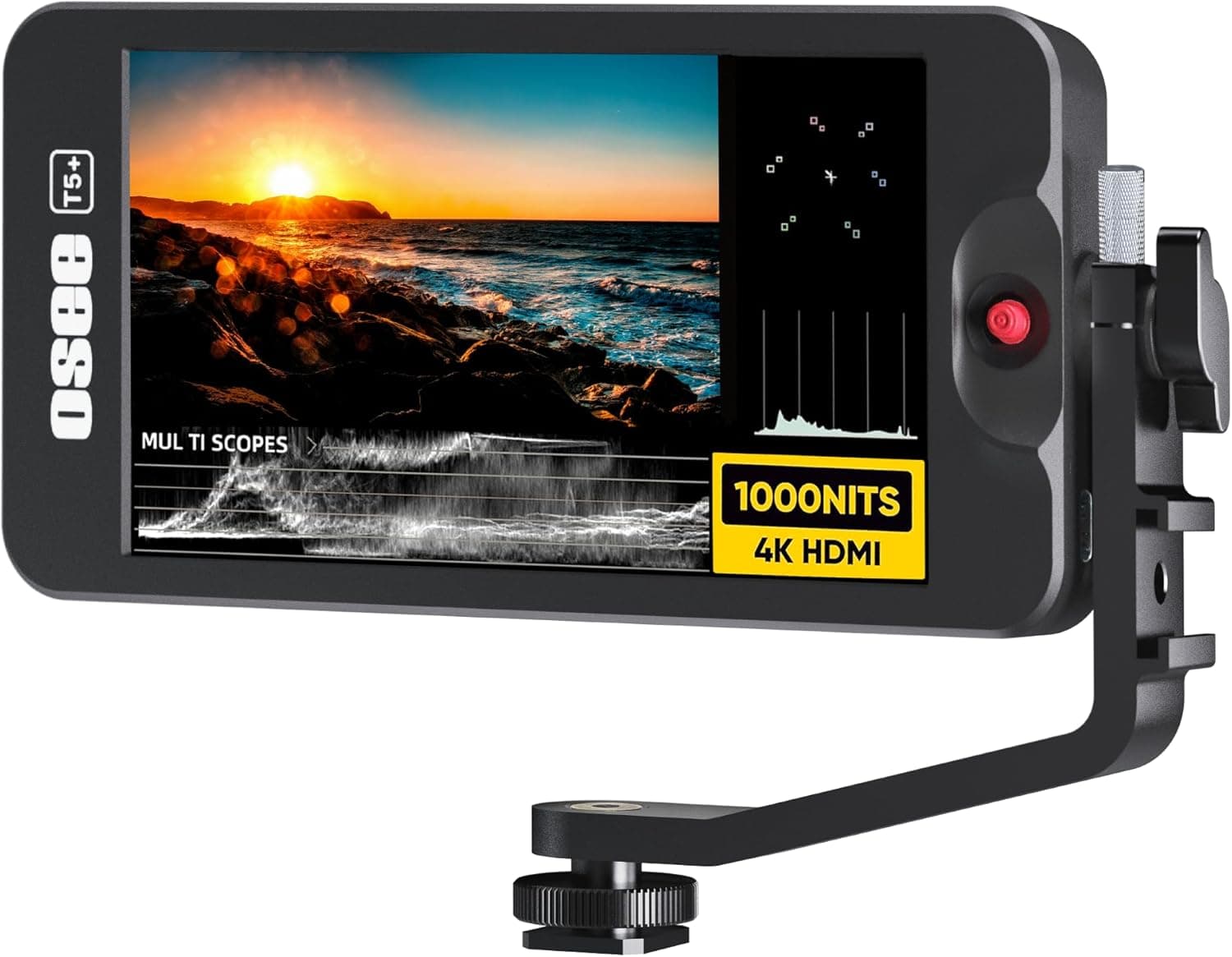
Best fit: Hybrid shooters who want better monitoring and a stronger codec in one unit.
$549 - $649
Skip if: Adds bulk and draws power
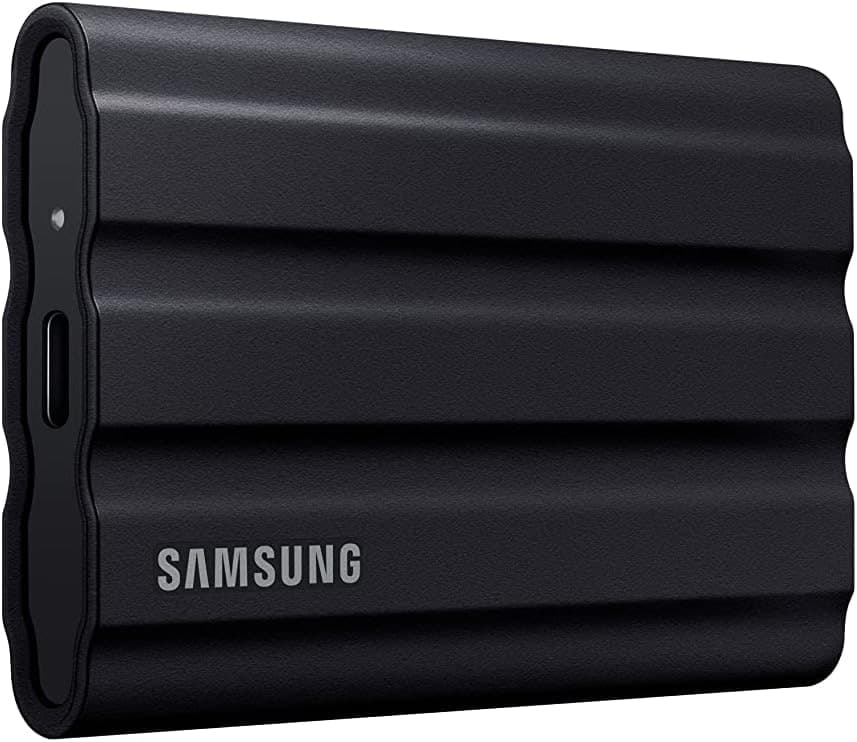
Best fit: Most shooters who want a tough, fast drive for offload and recording.
$99 - $179
Skip if: Not the fastest for the heaviest codecs
Product links may earn a commission at no cost to you. Use the calculator first, buy only if the gear solves the actual problem.
Step 1
Choose the closest camera menu recipe to the one you are comparing. The decoder separates it into the individual decisions hiding in the string.
Step 2
Select the container, codec, bit depth, chroma, color profile, or bitrate token to see what that layer changes and what it does not change.
Step 3
Compare grading headroom with storage and editing cost. Choose the mode that fits the footage and computer you actually have.
No. Log is a color and tone profile. It records a flatter image for grading. The codec is the compression method, such as H.264, H.265, ProRes, or RAW. You can combine a codec with a Log profile in the same recording mode.
Choose H.264 when playback compatibility and easy editing matter most. Choose H.265 when you want smaller files or 10-bit recording and your computer and editor handle the extra decoding work well.
You do not need it for every clip, but 10-bit is the sensible floor for Log, strong color correction, green screen, smooth gradients, or matching several cameras. For quick delivery in standard color, 8-bit can be enough.
No. RAW preserves more information and gives you more control later, but it creates larger files and adds a more demanding workflow. A well-exposed 10-bit file is often the better choice for a solo creator who wants to finish quickly.