We may earn a commission from links on this page, at no extra cost to you. Picks are researched, not sponsored.
"Cannot record," "card error," and recordings that stop after a few seconds do not all mean the same thing. The safe order matters because formatting can fix a file-system problem while also erasing the only copy of a shoot.
Read the symptom before changing anything
| Symptom | Likely cause | Safe next step |
|---|---|---|
| Camera says the card is locked | SD write-lock tab is engaged | Eject the card and move the side tab up |
| Card is visible but record is disabled | Unsupported card type or recording mode | Check the camera's card table |
| Video stops after a few seconds | Sustained write speed is too low or card is failing | Test a lower-bitrate mode after backup |
| Camera asks to format | File system is unsupported or damaged | Back up with a computer or reader first |
| Remaining time is zero | Card is full or file limit was reached | Copy files, verify them, then format in camera |
| Error follows one card across devices | Card is likely damaged | Retire it rather than trusting it again |
The safe troubleshooting order
1. Protect the existing files
If the card contains anything important, do not format it yet. Turn the camera off, remove the card, and use a reader to copy the files. Open several clips or photos from the copy before changing the card.
2. Check the physical lock
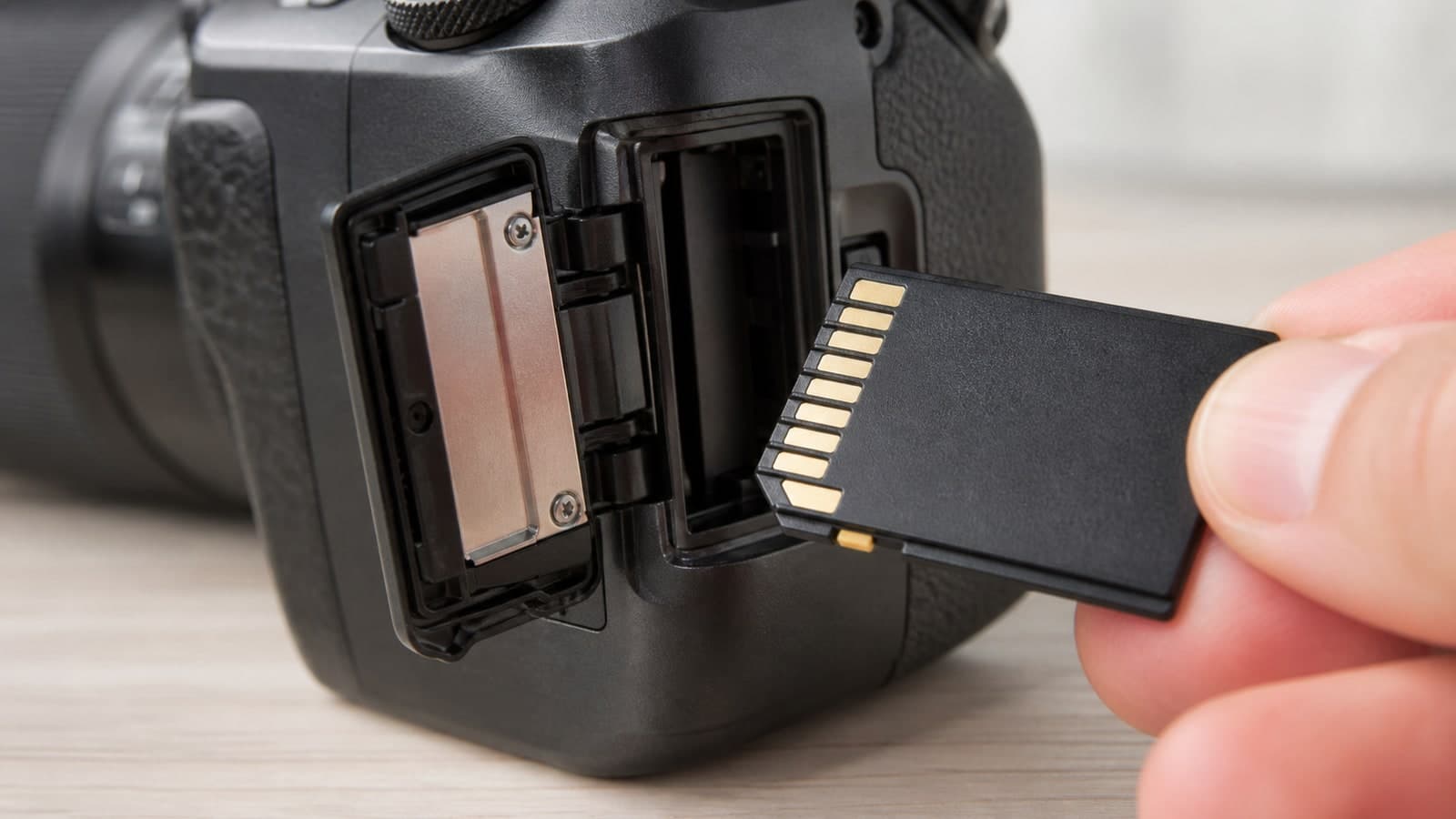
Full-size SD cards have a small write-lock tab on the side. If it has moved down, the camera can read files but cannot create new ones. Move it up and reinsert the card with the camera off.
3. Confirm the card type
Camera manuals list supported formats by slot and recording mode. SD, UHS-I, UHS-II, CFexpress Type A, and CFexpress Type B are not interchangeable. Some cameras accept two physical card formats in one slot but reserve their highest recording modes for one type.
4. Match sustained speed to the mode
The large number printed on a card is often peak read speed, not guaranteed write speed. The SD Association defines V30, V60, and V90 as minimum sequential write speeds of 30, 60, and 90 MB/s in its Video Speed Class specification overview.
Check the camera manual for the required class. A 200 Mbps recording mode writes roughly 25 MB/s before overhead, but the manufacturer's supported-card table is the deciding source.
5. Test a lighter recording mode
After backup, choose a lower bitrate, frame rate, or resolution. If 1080p records but high-bitrate 4K stops, card speed or mode compatibility moves to the top of the list. If every mode fails, suspect formatting, contacts, or card failure.
6. Format in the camera
Use the camera's format command, not a computer's quick erase, after the files are safe. Sony's recording-error guidance recommends a full camera format when recording has slowed or card errors continue. Formatting erases the card.
If the camera cannot format it, the SD Association's SD Memory Card Formatter can restore the standard file system for compatible SD media. The camera should still format the card again before use.
When to replace the card
Replace a card when errors return after a full format, when the card disconnects during transfer, when recordings fail in supported modes, or when the plastic shell or contacts are damaged. A card that has failed once on a paid or unrepeatable shoot is not the place to save money.
Best SD Card
SanDisk Extreme Pro SDXC 128GB
Most enthusiasts shooting stills and standard 4K.
Check price at AmazonThe SanDisk Extreme Pro SDXC 128 GB card is a UHS-I V30 option for stills and standard video modes that require at most 30 MB/s sustained write speed. SanDisk lists the Extreme PRO UHS-I family as U3 and V30; the read-speed headline varies by generation and matters less than that sustained write floor. It is not automatically the right card for every camera. If the camera manual calls for V60, V90, or CFexpress, skip it. The memory-card guide compares those faster formats.
Common mistakes
Do not repeatedly restart a failed recording when the only copy is still on the card. Do not assume "Class 10" is enough for every 4K mode. Do not buy CFexpress or UHS-II until the camera manual confirms support. Do not keep using a card merely because formatting made one error disappear.
Primary sources
- SD Association: Video Speed Class minimum write speeds
- SanDisk: Extreme PRO UHS-I SD card family specifications
- Sony: Recording slowed, stopped, or produced a memory-card error
- Sony: Unsupported memory card message while recording XAVC S
- SD Association: SD Memory Card Formatter
Why does my camera stop recording video after a few seconds?
The card may not sustain the selected bitrate, the mode may require a different card class, the card may be full, or the card may be failing. Back up the files, check the camera's supported-card table, then test a lower-bitrate mode.
Should I format a new memory card in the camera?
Yes, after confirming there is nothing on it you need. In-camera formatting creates the file system and folder structure the camera expects. Reformat after verified backups, not as a first response to an unreadable card.
Does V90 make every camera record better video?
No. V90 guarantees a higher minimum sequential write speed, but a camera with a UHS-I slot or a lower-bitrate mode may gain nothing from it. Buy to the camera manual and recording mode.
Keep going
Next useful steps
Pick one. Each link continues the same job without starting the research over.
Related Learn guides

Content Credentials and C2PA Explained for Photographers
Content Credentials record a photo's signed provenance and edits. Learn what C2PA proves, what it cannot prove, and how capture-to-export workflows work.

Open Gate Video Explained: When 3:2 Is Worth It
Open Gate records a taller sensor area for flexible 16:9, 9:16, and square crops. See when it helps, what it costs, and how to frame it correctly.

Pre-Capture Photography Explained: Get the Frame Before the Click
Pre-Capture buffers photos before the shutter is fully pressed. Learn how it works, which settings change, and when RAW, flash, or focus may be limited.

RAW vs JPEG: Which File Format Should You Shoot?
RAW keeps all your sensor data for maximum editing freedom; JPEG is smaller and ready to share. Here is how they differ and when each one is the right call.
Researched, not personally tested: picks compare specifications, available owner feedback, and established expert sources. As an Amazon Associate I earn from qualifying purchases. We may earn a commission from links here, at no extra cost to you. How we research →