We may earn a commission from links on this page, at no extra cost to you. Picks are researched, not sponsored.
The rear screen lies. It looks bright in a dark room and washed out in sunlight, so a photo that looks fine on the screen can be badly exposed. The histogram does not lie. It is the most honest exposure tool your camera has, and it confirms what the light meter only guessed at.
What a histogram shows
The horizontal axis is brightness: pure black at the far left, mid-tones in the middle, pure white at the far right. The vertical axis is how many pixels sit at each level. A tall spike means many pixels of that brightness; a low area means few.
There is no single correct shape. A bright snowy scene leans right, a dark night scene leans left, and both can be correct. What you are watching for is data falling off the edges.

Reading the edges: clipping
Clipping is when tones get pushed past the edge of the graph and lose all detail.
- Left edge spike (shadow clipping): pixels are pure black with no recoverable detail. Some is normal in a dark scene; a tall wall against the left edge means you crushed the shadows.
- Right edge spike (highlight clipping): pixels are pure white with no detail. This is usually worse, because blown highlights cannot be recovered in editing. A bright sky often clips; use the white-sky diagnosis to separate actual clipping from a naturally flat sky.
Many cameras also offer a blinking "blinkies" overlay that flashes the clipped areas directly on the image, which is faster to read at a glance than the graph itself.
Brightness versus RGB histograms
Most cameras offer two versions. Canon's EOS R8 Mark II manual describes the brightness and RGB histograms: the brightness histogram shows the overall distribution of tones, with too many pixels at the left meaning lost shadow detail and too many at the right meaning lost highlight detail, while the RGB histogram shows red, green, and blue separately. In the RGB version, pixels bunched at the right of one channel mean that color is oversaturated with little gradation, and the display also helps reveal white balance bias. Nikon's guide to using your camera's histogram makes the same link: if the color channels need adjusting, white balance is the control to reach for.
Use the brightness histogram for everyday exposure checks. Switch to RGB for red flowers, blue skies, stage lighting, and sunsets, where one channel can clip while the combined graph still looks safe.
Live histogram versus playback
On a mirrorless camera, you can usually display the histogram live in the viewfinder or on the screen before you shoot. That lets you adjust exposure compensation while watching the right edge, instead of shooting first and checking after. On many DSLRs shooting through the optical viewfinder, you see it only in playback. Either way, the reading is only as good as the moment you check it: if the light changes, check again.
Using it to fix exposure
When you see clipping you do not want, adjust and reshoot:
- Highlights clipped on the right? Reduce exposure. Drop the ISO, use a faster shutter speed, or dial in negative exposure compensation.
- Shadows clipped on the left? Add exposure. Open the aperture, slow the shutter, or add positive compensation.
- Both edges clipping at once? The scene's contrast is wider than the sensor can hold. Expose for the highlights and lift shadows later, or use a graduated filter or bracketing.
A balanced daylight starting point like f/8 · 1/250 · ISO 200 usually produces a histogram that sits comfortably inside both edges.
Three worked examples
A snowy field in sun. The meter makes snow gray, so the histogram sits in the middle with nothing near the right edge. Add +1 to +1.7 EV of exposure compensation until the main peak moves toward the right without touching it. A typical result is f/8 · 1/1000 · ISO 100.
A sunset with the sun in frame. The sun will always clip; that is a tiny spike at the right edge and it is fine. Watch the area just left of it. If the sky around the sun is piled against the edge, reduce exposure by a stop. A typical result is f/11 · 1/500 · ISO 100.
A city street at night. The graph leans hard left with small spikes at the right from streetlights. That is a correct night histogram. Only worry if the main body of data is crushed into the left wall, which means the buildings have lost all detail.
Protecting highlights in camera
Some cameras include a setting that holds a little more highlight detail. Canon's EOS R50 manual describes Highlight tone priority, which improves gradation in highlights, with the trade-offs that noise may increase slightly and the lowest available ISO becomes 200. It is a reasonable choice for weddings, white dresses, and bright skies, and less useful for low-contrast scenes where it adds nothing.
Common mistakes
- Judging exposure by the rear screen. Its brightness changes with ambient light. The histogram is consistent. Trust the graph.
- Aiming for a centered bell curve every time. There is no ideal shape. A low-key portrait should lean left; a high-key one should lean right.
- Ignoring highlight clipping because the screen looked fine. Blown highlights are gone for good. Catch them on the histogram before you leave the scene.
- Watching only the combined histogram. A single color channel can clip while the overall graph looks safe, which shows up as color shifts in skies and skin. Switch to the RGB histogram for critical work.
This is the verification step for every other control in the exposure triangle, and the exposure calculator helps you predict which way to adjust before you check.
Where to go next
Use the exposure calculator to see which control to move when the histogram says to add or remove a stop. When the graph is clipping at both edges, the scene is wider than one exposure can hold, which is where HDR photography and bracketing come in. And if the histogram keeps landing in the wrong place, the cause is usually the meter, covered in metering modes explained.
What does a good histogram look like?
There is no universal good shape. A correct histogram is one where the important tones are not clipped against either edge. Bright scenes lean right, dark scenes lean left, and both can be exposed correctly.
Is it better to clip shadows or highlights?
Clip shadows before highlights when you must choose. Shadow detail is often recoverable in editing, while blown highlights are usually gone for good. This is why many photographers expose to protect the right side of the graph.
Should I check the histogram on every shot?
Not every frame, but check it whenever the light changes or the scene is high contrast. In tricky light, the histogram catches exposure errors that the rear screen hides.
What is the difference between the brightness and RGB histogram?
The brightness histogram shows overall tones in one graph. The RGB histogram shows red, green, and blue as separate graphs, so you can see when a single color is clipping, such as the red channel on a red flower, even when the brightness graph looks fine. It can also hint at a white balance cast.
Keep going
Next useful steps
Pick one. Each link continues the same job without starting the research over.
Related Learn guides
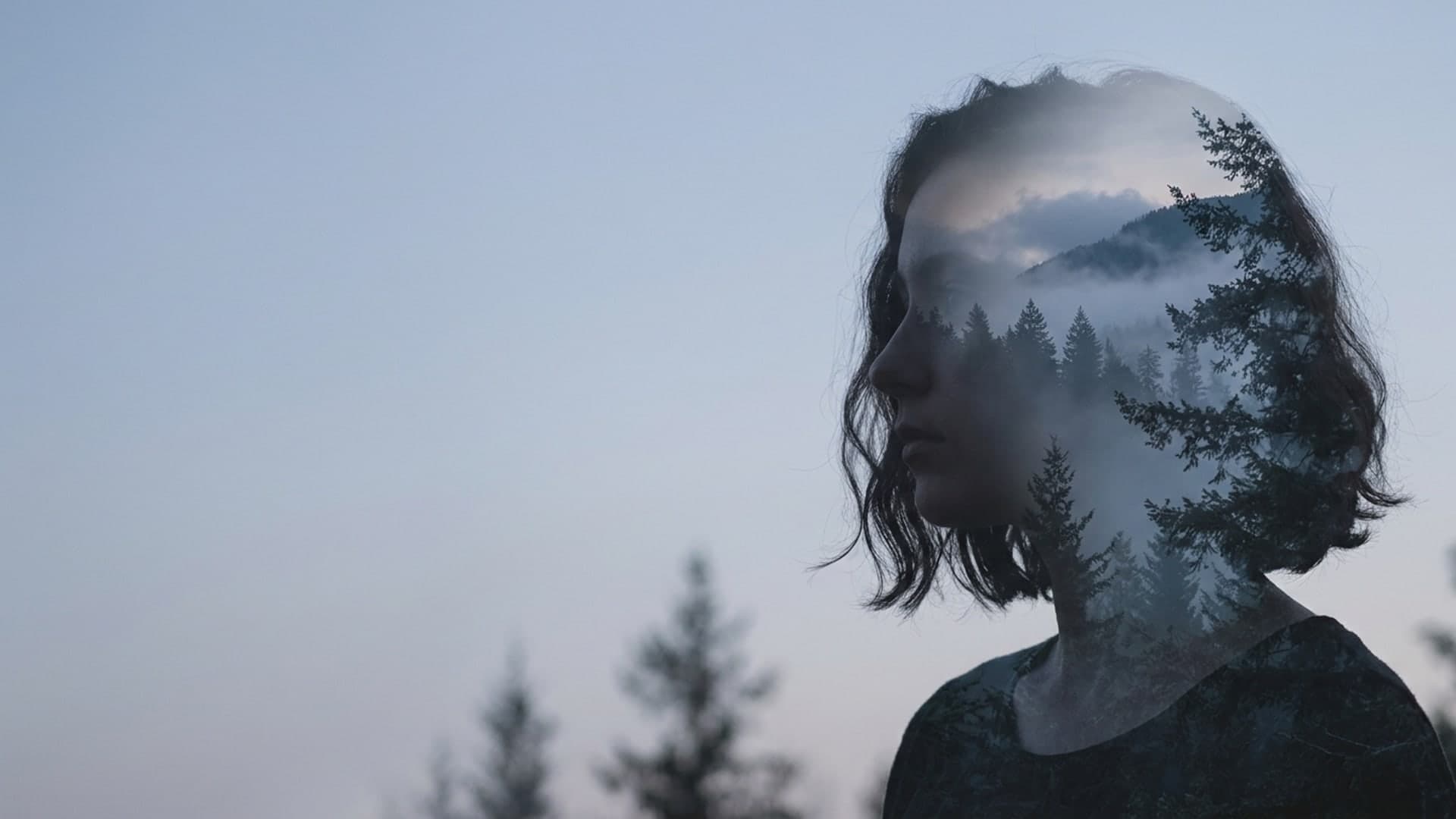
Double Exposure Photography: In-Camera and in Editing
How double exposure photography works, which in-camera modes Canon, Nikon, and Fujifilm offer, the silhouette method, and how to blend two photos in editing.
How to Avoid Camera Shake: Stop Blurring Your Own Photos
Camera shake blurs the whole frame when your hands move during the exposure. Beat it with a faster shutter, better holding technique, stabilization, or a tripod.
How to Get a Blurry Background (Bokeh) in Your Photos
A blurry background comes from a wide aperture, a longer lens, getting close to your subject, and distance behind them. Here are the exact settings to use.
How to Photograph Reflections: Water, Glass, and Mirror Shots
Reflections add symmetry and depth, but they need the right angle and exposure. Here is how to shoot water, glass, and mirror reflections cleanly.
Researched, not personally tested: picks compare specifications, available owner feedback, and established expert sources. As an Amazon Associate I earn from qualifying purchases. We may earn a commission from links here, at no extra cost to you. How we research →